Configure Number Sequences
Number sequences are used as identifiers for master data records and transaction records that require unique identifiers.
Perform the following steps to configure number sequences to work with Anthology Finance & HCM:
 Set up number sequences for all modules in Microsoft Dynamics 365 for Finance and Operations
You can set up the number sequences either by using the SET UP NUMBER SEQUENCE wizard to set up all the number sequences at the same time or by creating and modifying number sequences using the Number Sequence form.
To set up number sequences using the SET UP NUMBER SEQUENCE wizard, perform the following steps:
-
Navigate to Organization Administration > Number Sequence > Number sequences.
-
In the New menu, select Generate.
The Welcome page is displayed.
-
Select Next.
The Setup page is displayed.
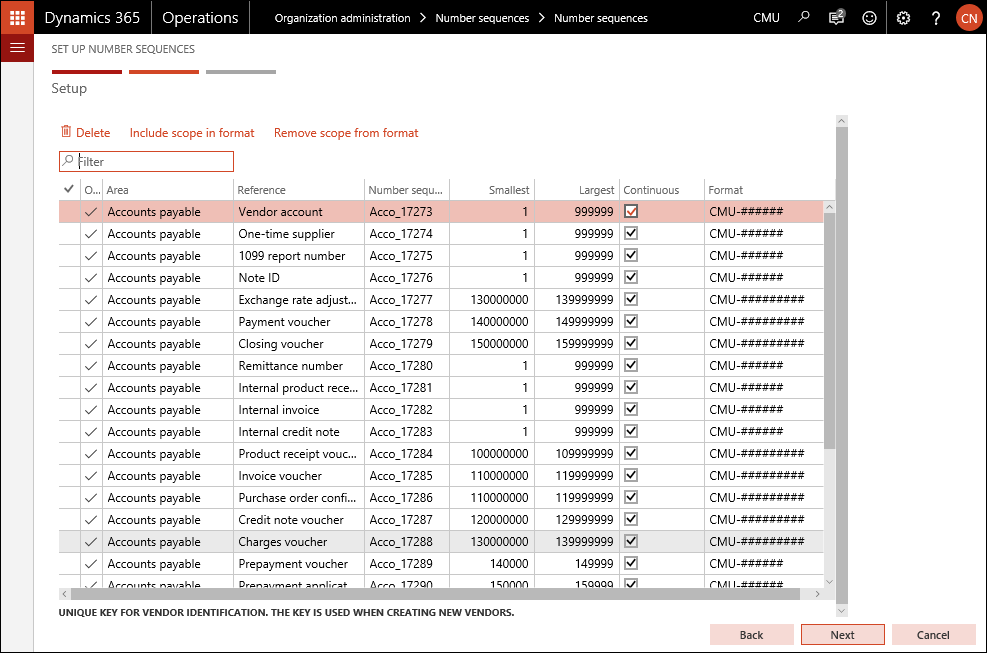
On this page, based on your business requirements, modify the values in the following columns for each Number sequence:
- Number sequence code
- Smallest
- Largest
You can also indicate whether the number sequence must be continuous or non-continuous by selecting or clearing the check box in the Continuous column.
-
To add or remove a scope segment to the format of a number sequence, select the number sequence record and select Include scope in format or Remove scope from format at the top of the screen.
-
To exclude a number sequence from automatic generation, select the number sequence record and select the Delete option at the top of the screen.
-
Select Next.
The generation of the number sequence is completed.
- Select Finish.
To set up individual number sequences, refer to Microsoft Documentation.
Verify the generated number sequences for the Student Accounting module
-
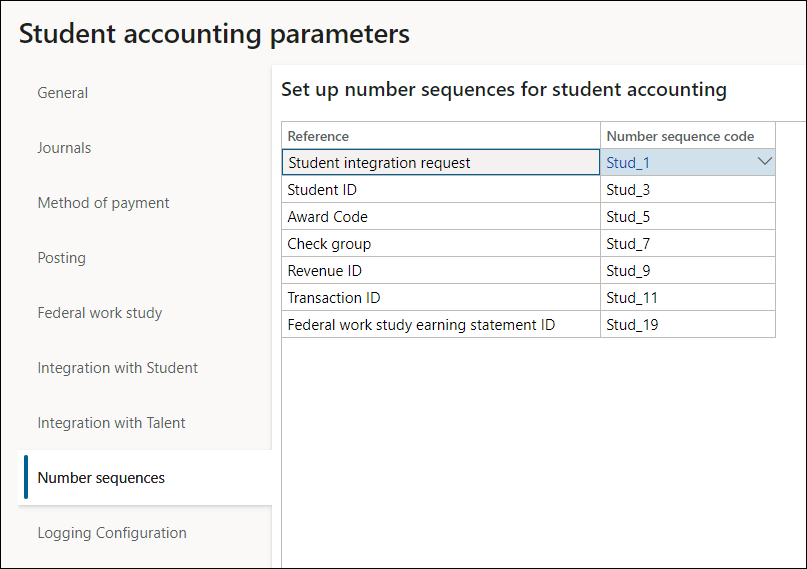
Navigate to Student accounting > Setup > Student accounting parameters.
-
Select the Number sequences tab.
-
For a record in the Reference field, verify that the Number sequence code field is filled.
Verify the generated number sequences for the Faculty Management module
-
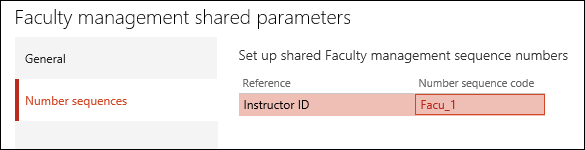
Navigate to Faculty management > Setup > Faculty management shared parameters.
-
Select the Number sequences tab.
-
For a record in the Reference field, verify that the Number sequence code field is filled.
Configure the number sequence as non-continuous for integration with Anthology Student
For proper integration with Anthology Student, it is required to configure the number sequence as non-continuous for the following parameters in Anthology Finance & HCM:
Journal batch number
-
Navigate to General Ledger > Ledger setup > General ledger parameters.
-
In the left pane, select Number sequences.
-
Select the Journal batch number row, right-click the drop-down arrow next to the number sequence code, and select View details.
The Number Sequence form for the Journal batch number is displayed.
-
Select Edit.
-
In the General section, set the Continuous field to No.
-
Select Save and close the form.
-
Close the General ledger parameters form.
Student integration request and check group
-
Navigate to Student accounting > Setup > Student accounting parameters.
-
In the left pane, select Number sequences.
-
Select the number sequence code for Student integration request.
The Number Sequence form for Student integration request is displayed.
-
Select Edit.
-
In the General section, set the Continuous field to No.
-
Select Save and close the form.
-
Select the number sequence code for Check group.
The Number Sequence form for Check group is displayed.
-
In the General section, set the Continuous field to No.
-
Select Save and close the form.
-
Close the Student accounting parameters form.
Course ID
-
Navigate to Human resources > Setup > Human resources parameters.
-
In the left pane, select Number sequences.
-
Select the number sequence code for Course ID.
The Number Sequence form for Course ID is displayed.
-
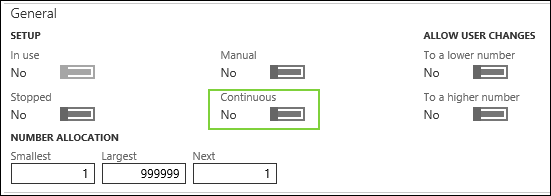
In the General section, set the Continuous field to No.
-
Select Save and close the form.
Instructor ID
-
Navigate to Faculty management > Setup > Faculty management shared parameters.
-
In the left pane, select Number sequences.
-
Select the number sequence code for Instructor ID.
The Number Sequence form for Instructor ID is displayed.
-
In the General section, set the Continuous field to No.
-
Select Save and close the form.
-
Close the Faculty management shared parameters form.
External Link:
Microsoft Documentation: Number sequences overview
