Enable/Disable Jobs
-
Launch Microsoft SQL Server Management Studio on the server where the SSIS Catalog is installed.
-
Navigate to SQL Server Agent > Jobs
-
Upon successful completion of the job “StudentAnalytics (<Data warehouse database name>) Initial Load”, right-click and disable the Initial Load job.
-
Make sure the following jobs are enabled:
-
StudentAnalytics <data warehouse database name> Age Refresh
-
StudentAnalytics <data warehouse database name> Cleanup
-
StudentAnalytics <data warehouse database name> Incremental Load
-
StudentAnalytics <data warehouse database name> Student Account Aging Snapshot
If any of the above listed job are not enabled, right-click and enable them.
-
-
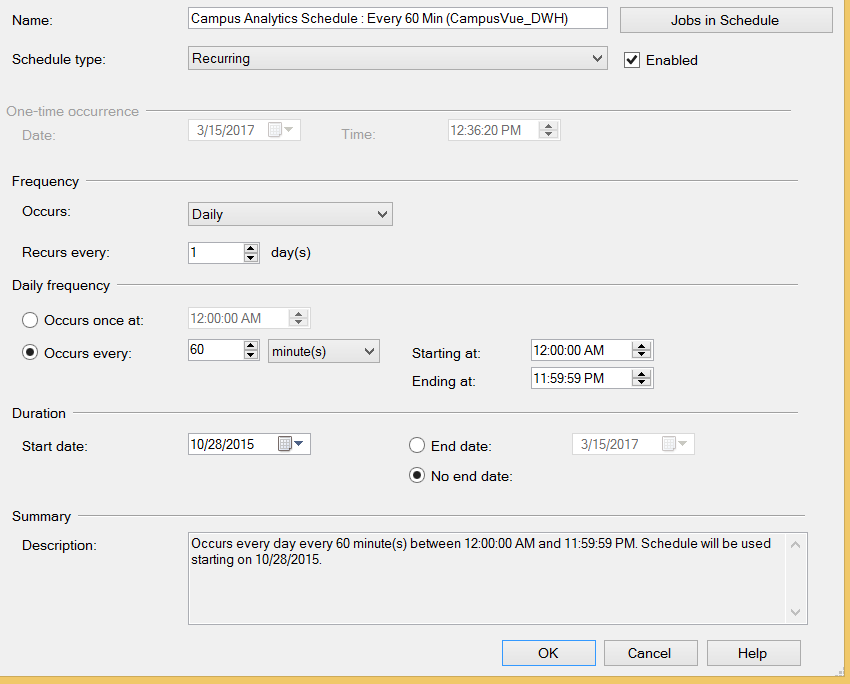
After the initial ETL job completes successfully, verify the Job schedules and if required modify. Upgrading to Analytics 4.2 or higher version will not modify customized job schedules.
Please follow the next section to change the Job schedule.
Change the Job Schedule
-
Navigate to SQL Server Agent > Jobs.
-
Right-click on the Job and click on Properties.
-
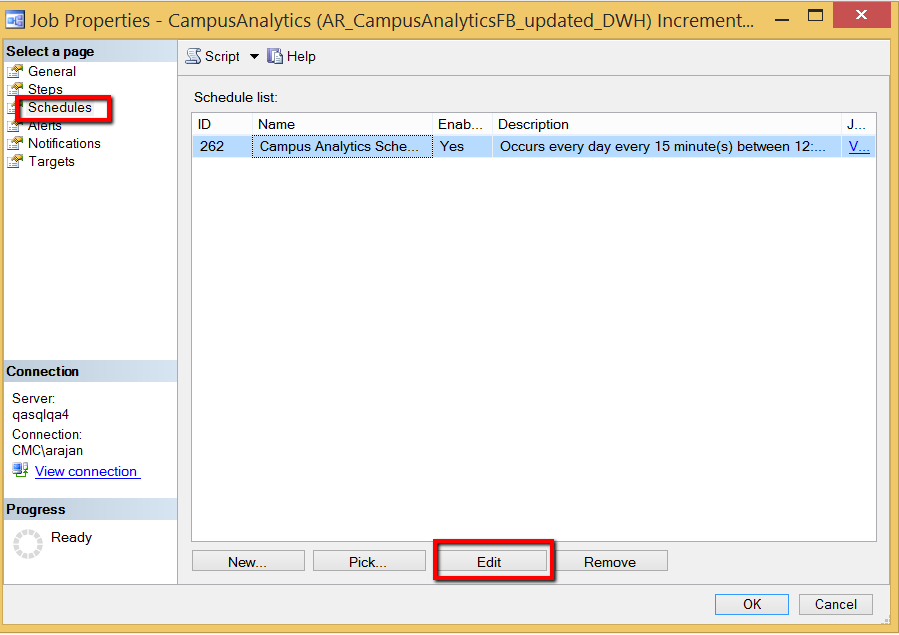
Select the Schedules tab as show below and click Edit.
-
Select a schedule that suits your business needs.