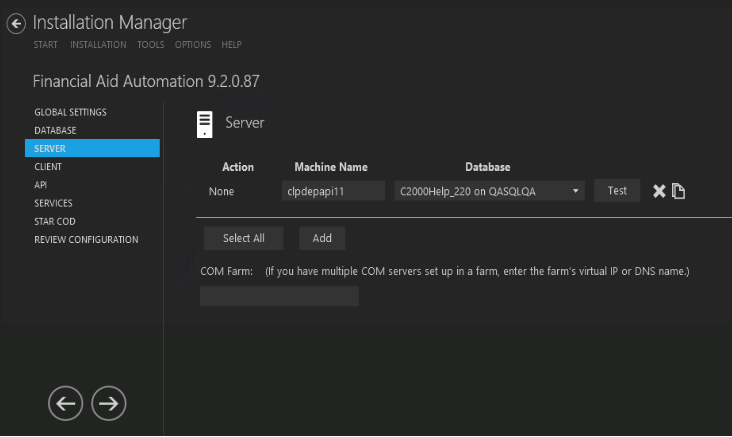
This screen enables you to specify the machine name and select the Anthology Student database accessed by the Financial Aid Automation Server component.
Set Up the Server
-
In the Installation menu, click Server. The Server screen for Financial Aid Automation is displayed.

-
Click Add to add a line to the Settings screen.
-
Select an appropriate Action. The following Action values are available:
-
None – Performs no action.
Optional: Click Select All to set the Action field to Install for all components listed on this screen. Click Unselect All to set the Action field to None.
-
-
Enter the Machine Name of the Server.
-
Select the Anthology Student Database used by Financial Aid Automation.
-
In the COM Farm field, enter the farm's virtual IP address or DNS name if you have multiple COM servers set up in a server farm with a load-balancing system.
-
Click
 to copy a line. Edit the copied line as needed.
 -
Click
 to delete a selected line.
 -
Click Test to ensure the setup for the corresponding line is correct. If a test on a particular line fails, check all associated fields and click Test again.
-
If all tests pass, click
 .
.