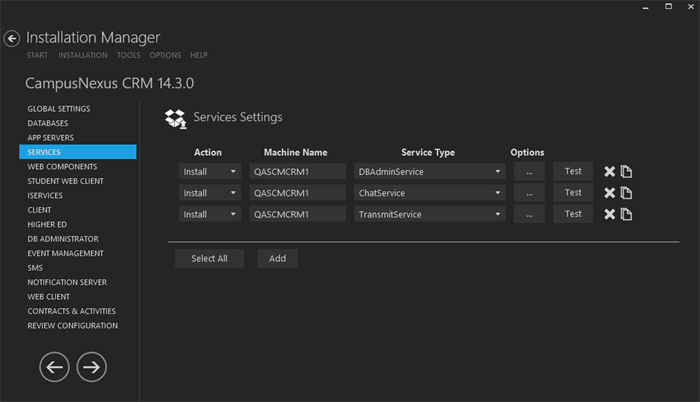
The Services screen is used to install, upgrade, or uninstall the following service types:
-
DBAdminService (previously referred to as 'CRM Service' or 'Talisma Services'): This service type upgrades the following CampusNexus CRM services.
When you run the Server setup, only the Database server will be upgraded. To upgrade CampusNexus CRM Services, you must run the DBAdminService setup. This procedure is applicable if Database and Services are available on the same computer or multiple computers.
-
ChatService: This service type is associated with the Web Components that support chat.
-
TransmitService: This service type is required for TransmitTracker.
Prerequisites
Identify and install the prerequisite software. See Software Requirements by Component — Services.
Set Up Services
-
In the Installation menu, click Services. The Services screen is displayed.

-
Click Add to add a line to the Settings screen.
-
Select an appropriate Action. The following Action values are available:
-
None – Performs no action.
-
Install – Performs a fresh installation or upgrade of a component. You can install or upgrade multiple components at the same time.
-
Upgrade – Performs an upgrade of the CRM Services.
-
Uninstall – Removes all subcomponents on that machine and uninstalls the component from Programs and Features.
Optional: Click Select All to set the Action field to Install for all components listed on this screen. Click Unselect All to set the Action field to None.
-
-
Enter the Machine Name for the component to be installed.
-
Select the Service Type. The following Service Types are available:
- DBAdminService
- ChatService
- TransmitService
-
Click
 to copy a line. Edit the copied line as needed.
 -
Click
 to view and edit the Options form for the selected Service.
-
Select the Main Database to be used by each Service.
-
For ChatService and TransmitService specify the Port number or accept the default.
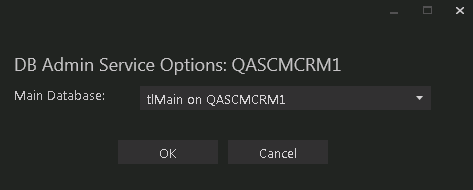
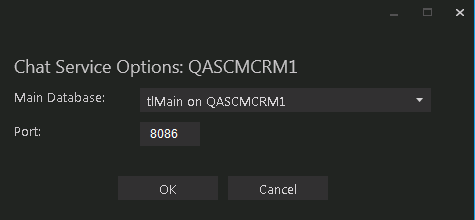
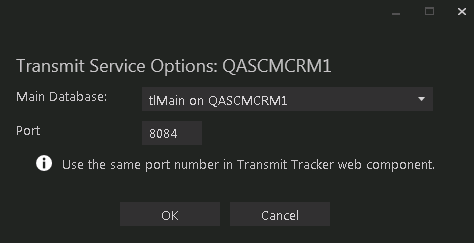
-
-
Click
 to delete a selected line.
 -
Click Test to ensure the setup for the corresponding line is correct. If a test on a particular line fails, check all associated fields and click Test again.
-
If all tests pass, click
 .
.