Importing Anthology Finance & HCM Entities Data
This topic describes the process of importing entity data into Anthology Finance & HCM using the Data management workspace of Microsoft Dynamics 365 for Finance and Operations.
Prerequisite
Ensure that the entity list is up-to date.
-
Log on to the required Anthology Finance & HCM environment with the System administrator role.
-
On the dashboard, select the Data management workspace.
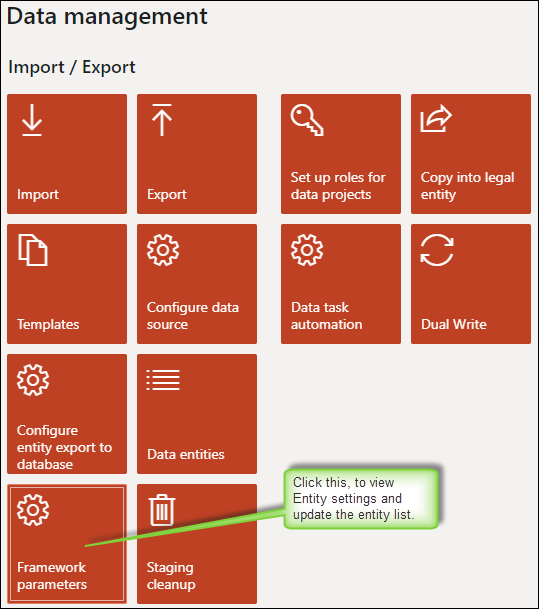
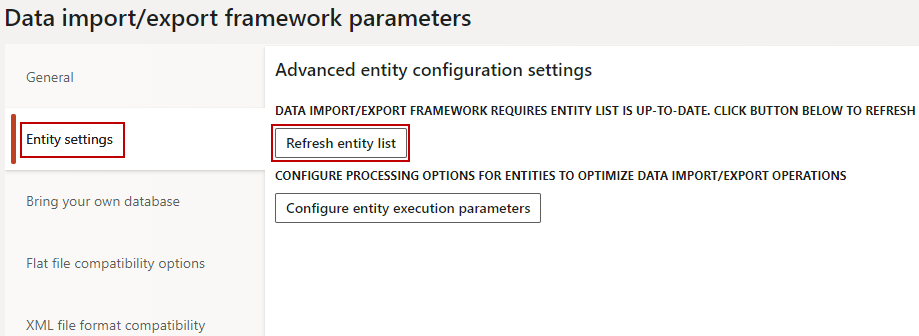
The Data import/export framework parameters page is displayed.
-
On the Entity settings tab, select the Refresh entity list button.
The entity list is updated.
Import the Master Data of Anthology Finance & HCM Entities
Importing the master data of the Anthology Finance & HCM entities consists of the following steps:
Create an Excel Template to Add Entity Data for Import
The Export feature of the Data management workspace can be used to create an Excel template for adding entity data that needs to be imported.
-
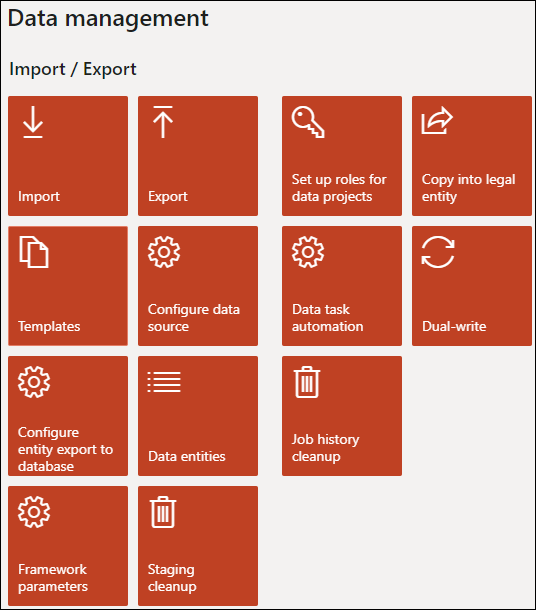
Navigate to System administration > Workspaces > Data management.
-
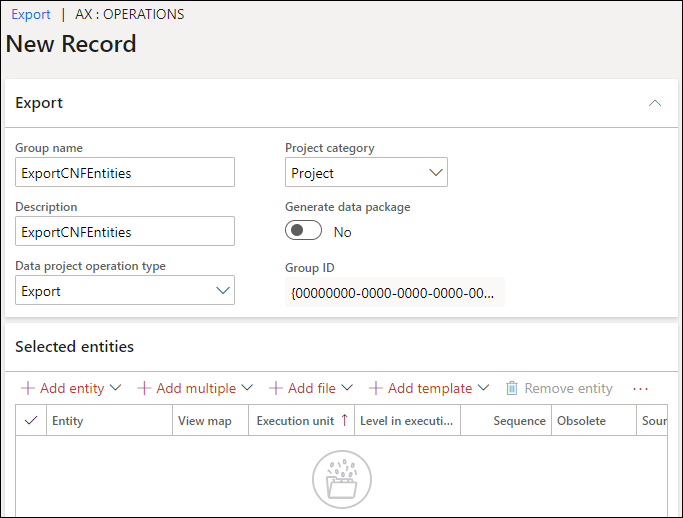
Select the Export tile to view the Export form.
-
In the Export section, in the Group name field, specify a name for the export package.
-
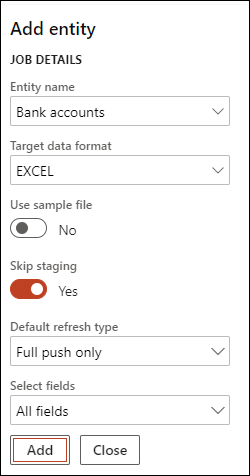
In the Selected entities section, select Add entity to view the Add entity page.
-
On the Add entity form, specify the following details:
-
In the Entity name field, select an entity name. Example: Bank accounts/ User Information.
-
In the Target data format field, select EXCEL.
-
Select Add. A message indicates that the entity mapping has been completed successfully.
-
Select Close to close the Add entity form.
-
-
In the Selected entities section, select the check box next to the entity record (Bank accounts) and select the Export menu option.
-
A message is displayed to refresh the form. Select Close and refresh the form.
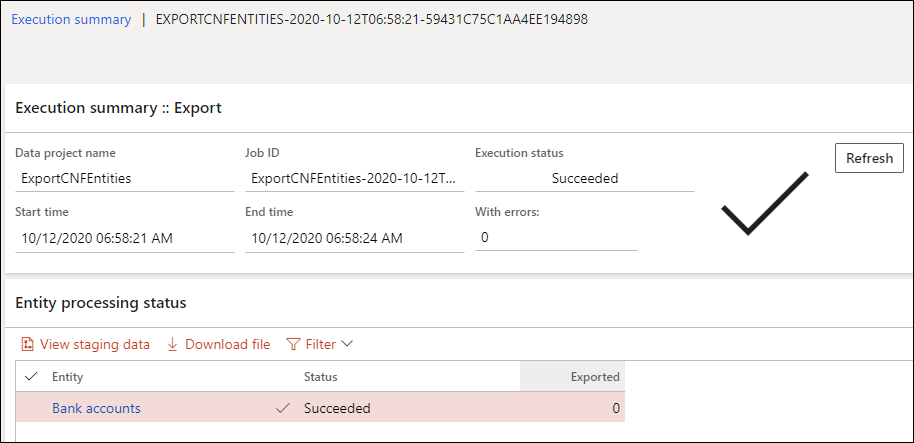
The export package with the data entity information is created.
-
Select the Download package menu option to download the export package.
— OR —
In the Entity processing status section, select the check box next to the entity record (Bank accounts) and select Download file.
-
A prompt to open or save the file appears. Save the file to your local computer.
-
Navigate to the location where the file is saved and extract the files from the export package.
Use the Microsoft Excel file from the extracted files to add the data that needs to be imported into Anthology Finance & HCM.
-
Repeat steps 4 through 10 to create Excel files for all the entities that must be imported.
Note: Use the CMCStudentTransEntity data entity to import summary transaction records. In the Excel file created for import, set the TRANSIDINSIS field to blank and the value of the SUMMARYTRANS field to Yes.
Import Entities Data From an Excel File
You can import the entity data from System Administration via:
 Data Management
After adding the entity data in the Excel file, created in the Create an Excel Template to Add Entity Data for Import section, you can import the entity data using the Import feature of the Data management workspace.
-
Navigate to System administration > Workspaces > Data management.
-
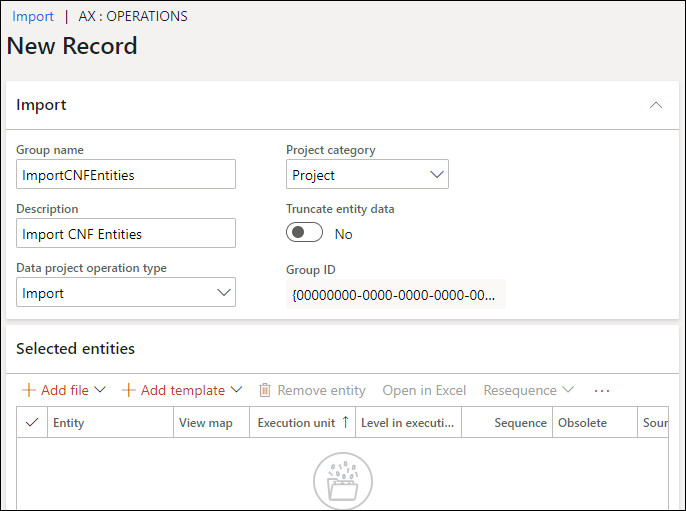
Select the Import tile to view the Import form.
-
In the Import section, in the Group name field, specify a name for the import package.
-
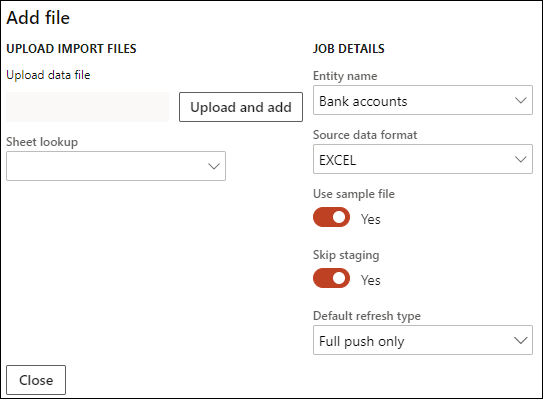
In the Selected entities section, select Add file to view the Add file page.
-
On the Add file page, perform the following steps:
-
In the Entity name field, select the entity name.
-
In the Source data format field, select EXCEL.
-
Select the Upload and add button and select the entity Excel file that has the data for import.
Note: The size of the messages sent is dynamically retrieved from the table and not set as a static value.
The file for data import is added and displayed in the Selected entities section.

-
-
Select the Bank accounts record.
Note: To import new records of the Student transactions entity, perform the following steps after adding the Excel file in Step 5:
-
In the Selected entities section, for the Student transactions entity, select
 in the View map column.
-
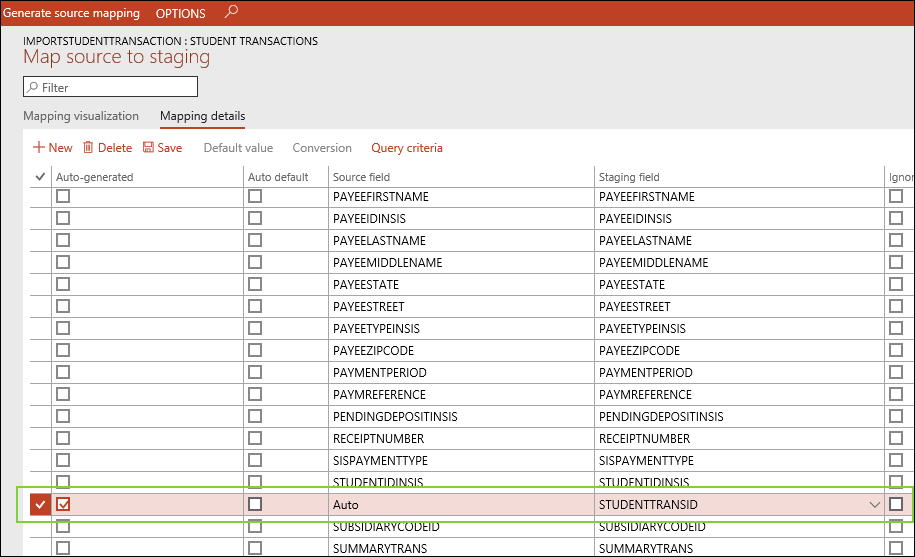
On the Map source to staging page, select the Mapping details tab, and select the Auto-generated check box for the STUDENTTRANSID field.
- Select Save and close the page.
-
-
Select Import.
-
A message prompts you to refresh the form. Select Close and refresh the form.
The import process is completed.
-
Open the required data entity form to verify whether the data was imported successfully.
-
Repeat steps 4 through 9 to import data for other Anthology Finance & HCM entities.
Note: After importing the Student transaction entity records, before running the Ledger journals batch creating and posting job, the Synchronize imported transactions batch job must be run to synchronize and validate the imported student transaction records with the corresponding records existing in Anthology Student. For more information, refer to Periodic Tasks.
Users
After adding the entity data in the Excel file, created in the Create an Excel Template to Add Entity Data for Import section, you can import the entity data using the Import feature of the System Administration workspace.
-
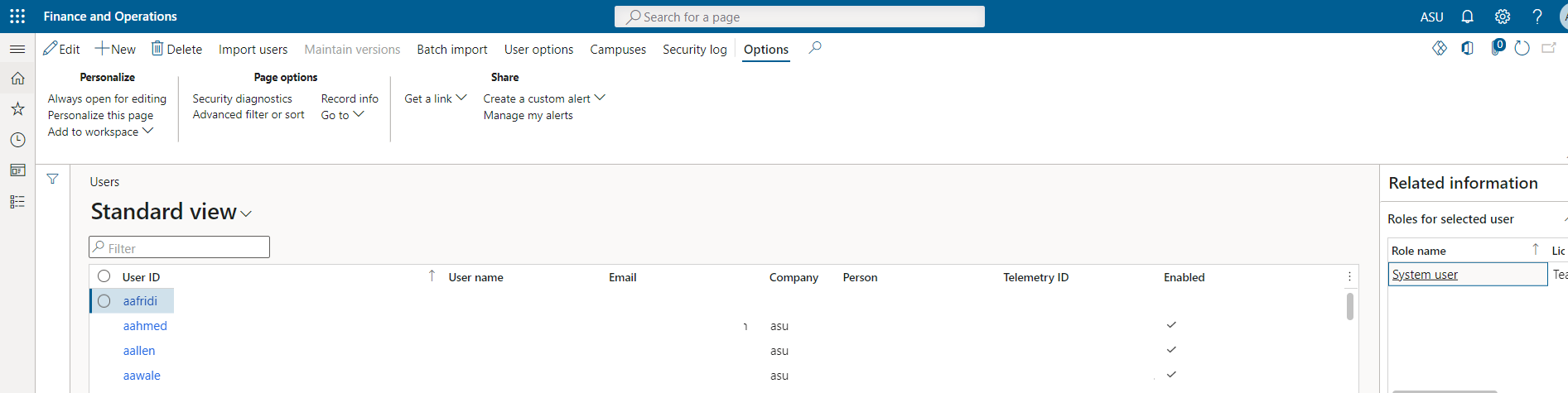
Navigate to System administration > Users.
-
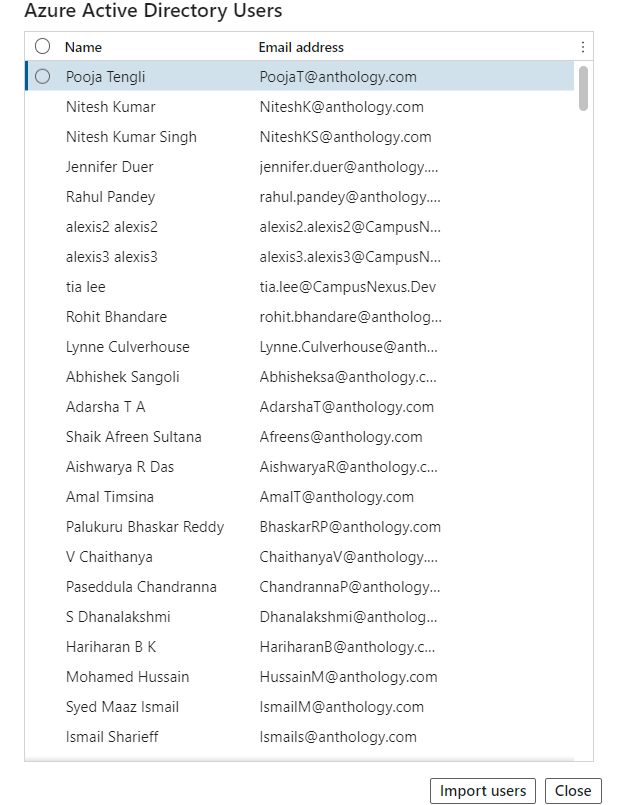
Select the Import user option to view the list of users to import from the AAD users window.
-
Select the Name and select Import Users.
-
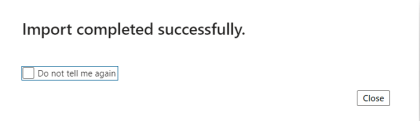
A message indicates that the import is successful.
-
The imported users are added and displayed in the User ID column.
External Link:
