Maintenance
Shipped CampusNexus Engage Flows are maintained within a Dynamics Solution. Before modifying a Flow, it’s recommended to disable the default Flow, and then create a new Flow for the entity. This is required as upgrades overwrite Flows, which would cause changes to be lost if default Flows are modified.
After creating a Flow, update the Flow URL in the Configuration files of Web Client. For more information, see the Deployment Guide.
Note: For school-defined fields, no changes are required in Workflows. Such fields will display in the JSON automatically.
Adding a new Picklist Value
Following steps need to be performed when a new picklist value is added in CampusNexus Student:
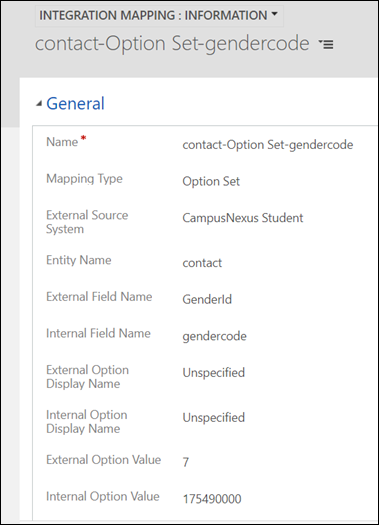
- Create the corresponding picklist value in CampusNexus Engage by editing the field in an appropriate solution. Note the picklist numerical value generated for this value.
- Add an Integration Mapping record with appropriate values for the new mapping based on the value retrieved in the earlier steps.

Adding a New Field
Following steps need to be performed when a new Field is added in CampusNexus Student:
- Create the corresponding field in CampusNexus Engage within an appropriate solution.
- Edit the Flow of the field’s entity:
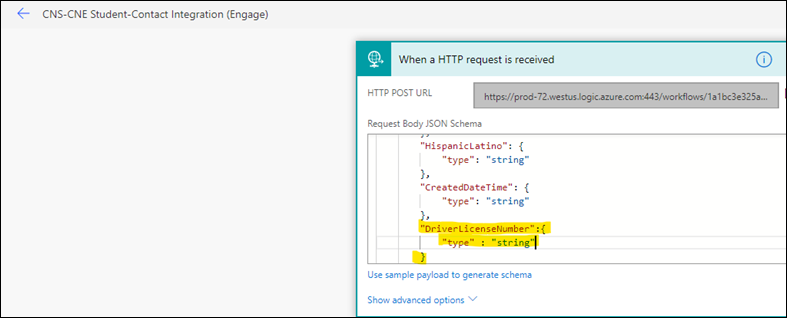
- In the first step, edit the JSON schema to add the new field as a property in the JSON schema with the appropriate data type.
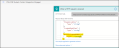
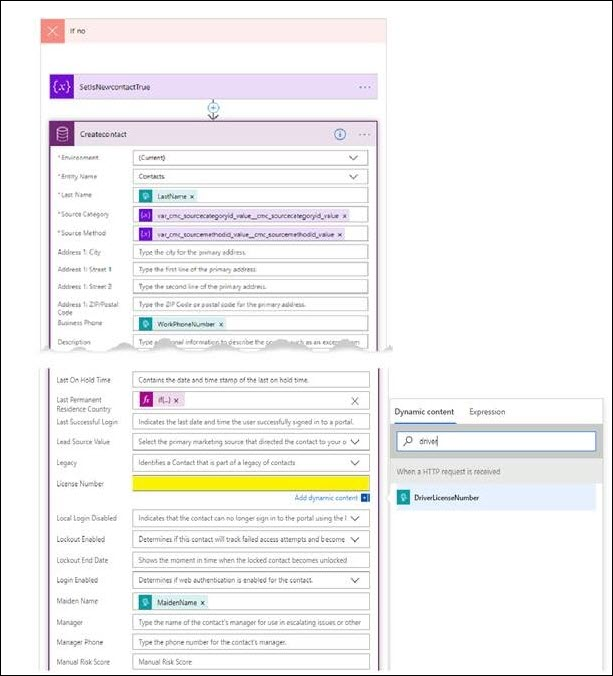
- In the Create action step, locate the new field and set the value as the JSON variable corresponding to the field received as input to the Flow.

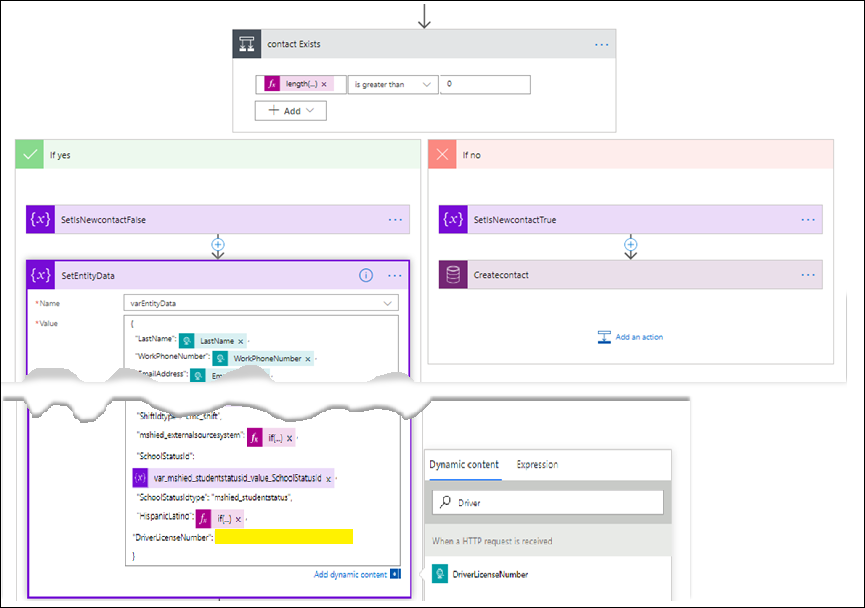
- In the Update Branch step, which includes the Set Entity Data step, edit the JSON to add a new property for the new field. This JSON property will have the Field Name as defined in the JSON schema as the name and the value of the property will be set to the JSON variable corresponding to the field received as input to the Flow.

- In the first step, edit the JSON schema to add the new field as a property in the JSON schema with the appropriate data type.