Anthology Payroll Tab
The Anthology Payroll tab displays the data for payroll processing and is displayed only when the integration with Anthology Payroll is enabled on the Human resources shared parameters page. For more information, see Enable Integration with Anthology Payroll.
The Anthology Payroll tab is displayed on the Positions form, which can be accessed using the following paths:
-
In the Human resources module:
-
On the Positions page (Modules > Human resources > Positions > All Positions > select a Position record)
-
On the Manage changes page (Modules > Human resources > Positions > All Positions > select a Position record and select Changes timeline > Manage changes).
-
- In the Anthology Payroll module:
On the Positions page (Modules > Anthology Payroll > Positions > Positions > select a Position record)
On the Manage changes page (Modules > Anthology Payroll > Positions > Positions > select a Position record and select Changes timeline > Manage changes).
Data on the Anthology Payroll Tab
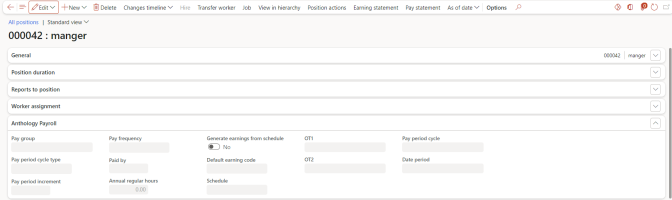
On the Anthology Payroll tab, the following fields are populated when the Update Data for Anthology Payroll Batch Job is run:
- Effective and Expiration date
- Pay group
- Pay period cycle type
- Pay period increment
- Pay frequency
- Default earning code
- OT1
- OT2
- Pay period cycle
- Date period
Roles and Privileges
System administrator / CMC: Federal work study administrator / CMC: Federal work study manager
Access Method
-
Navigate to Human resources > Positions > Positions and select a Position record.
-
Navigate to Anthology Payroll > Positions > Positions and select a Position record.
Fields
The following table provides descriptions of fields in this tab.
| Field | Description | |||||||||||||||
|---|---|---|---|---|---|---|---|---|---|---|---|---|---|---|---|---|
| Effective |
The Effective date is the date from when the payroll configuration is effective for the Position, configured in Anthology Payroll (Anthology Payroll worker > Position > AthPay profile > Maintain Effective dates > Active date and Expiry date). The value in this field is populated when the Update Data for Anthology Payroll Batch Job is run. Note: This field is available only on the Manage changes page of the Positions form. |
|||||||||||||||
| Expiration |
The Expiration date is the date till when the payroll configuration is effective for the Position, configured in Anthology Payroll (Anthology Payroll worker > Position > AthPay profile > Maintain Effective dates > Active date and Expiry date). The value in this field is populated when the Update Data for Anthology Payroll Batch Job is run. Note: This field is available only on the Manage changes page (Modules > Anthology Payroll > Positions > Positions > select a Position record and select Changes timeline > Manage changes) of the Positions form. |
|||||||||||||||
| Pay group | The Pay group associated with the Position, configured in Anthology Payroll worker > Position > AthPay profile > Maintain Effective dates > Active date and Expiry date > Pay group. The value in this field is populated when the Update Data for Anthology Payroll Batch Job is run. | |||||||||||||||
| Pay period cycle type | The Pay period cycle type associated with the Pay group, configured in Anthology Payroll worker > Position > AthPay profile > Maintain Effective dates > Active date and Expiry date > Pay group > Pay period cycle type. The value in this field is populated when the Update Data for Anthology Payroll Batch Job is run. | |||||||||||||||
| Pay period increment | The Pay period increment associated with the Position, configured in Anthology Payroll worker > Position > AthPay profile > Maintain Effective dates > Active date and Expiry date > Pay group > Pay period cycle type. The value in this field is populated when the Update Data for Anthology Payroll Batch Job is run. | |||||||||||||||
| Pay frequency | The pay frequency for the position. It is derived based on the values in the Pay period cycle type and Pay period increment fields. The following table lists the values supported for the Pay frequency field that are derived from the values in the Pay period cycle type and Pay period increment fields.
|
|||||||||||||||
| Paid by | The legal entity name that is responsible for making the payroll payments for the position. | |||||||||||||||
| Annual regular hours | The number of regularly paid hours that the position is expected to have each year. This value is used to determine salary adjustments. | |||||||||||||||
| Generate earnings from schedule | This option enables the generation of earnings based on the calendar selected in the Schedule field. | |||||||||||||||
| Schedule | The calendar configured in the legal entity selected in the Paid by field to generate earnings for the position. This field is mandatory when the Generate earnings from schedule is enabled. | |||||||||||||||
| Default earning code | The default earning code of type Hour for calculating the earnings. This field is mandatory when the Generate earnings from schedule is enabled. This field lists the active earning codes which are populated when the Update Data for Anthology Payroll Batch Job is run. | |||||||||||||||
| OT1 | The OT1 earning code of type Hour for calculating the earnings. This field lists the active earning codes, which are populated when the Update Data for Anthology Payroll Batch Job is run. | |||||||||||||||
| OT2 | The OT2 earning code of type Hour for calculating the earnings. This field lists the active earning codes, which are populated when the Update Data for Anthology Payroll Batch Job is run. | |||||||||||||||
| Pay period cycle | Displays the Pay period cycle associated with the Pay group. This field cannot be edited. | |||||||||||||||
| Date period | Displays the Date period associated with the Pay period cycle. This field cannot be edited. |
Edit the HR Position Form
-
To edit the HR Position Form, select a Position ID.
-
In the HR Position form heading, select the Edit menu:
-
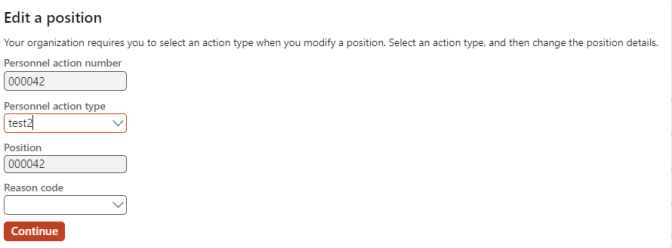
Complete the fields in the Edit a position drop-down and select Continue.
-
Position Action form is displayed.
-
Edit the information on the:
-
General FastTab for required fields along with:
- Position group
- Faculty type
- Staff type
-
Action FastTab
-
Payroll FastTab
-
-
Select Save.
