Open topic with navigation
New Account Creation
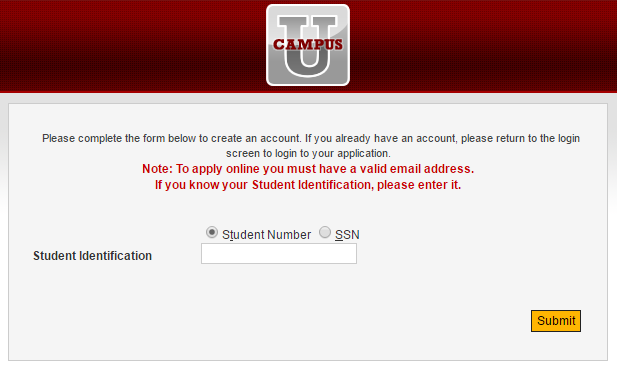
Forms Builder can be used to build a form that enables students to create an account for the institution's Portal. The New Account Creation form contains fields for Student Number and Social Security Number (SSN) or Social Insurance Number (SIN).
Students who are not US Citizens and do not have a SSN can only enter their Student Number, which in many cases they don't know. Previously, without providing either value, the student was unable to proceed further. In Forms Builder version 2.2.1 and later, the Student Number or SSN are no longer required. The student can proceed into the form sequence without entering Student Number or SSN. If neither Student Number nor SSN is provided, Forms Builder will assume that this is a brand new student. To prevent duplicate accounts from being created for existing students, we highly recommend adding a rule in the sequence to perform a duplicate check at the end of the first form. See Insert Duplicate Applicant Info Rule.
To Create a User Account
-
Type the Portal URL in the address bar of your browser. The login page is displayed.
-
Click the Student Portal link. The My Campus Login page is displayed.
-
Click Create Account.
-
Enter the Student Identification (if known), and click Submit.
-
Enter your details in the displayed page to create a new account. All fields marked with an asterisk are required.
Help Build: Tuesday, August 29, 2017
Forms Builder Version 2.3.1 | © 2016 Campus Management Corp. All rights reserved. | www.campusmanagement.com